The short answer
Send a final, approved script laid out one row per slide or screen, with the words to read aloud kept apart from on-screen text and notes. Write it for the ear: short sentences, numbers written the way they’re said, and every acronym marked as letters or a word. Add a pronunciation guide with “sounds like” spellings, and say how you want the files split and named. That’s most of the back-and-forth gone before anyone presses record.
A course script is written to be read on a screen. Narration is heard once, at the speed of a voice, by someone who can’t scroll back up. A little prep closes that gap. It saves your team re-records, and it saves your learners from a narrator guessing how to say your product name. If you’re still choosing a narrator, start with my guide to hiring an e-learning voice actor. This one is about the script itself.
1. Lock the script before it goes to the narrator
The most expensive change is the one made after recording. Before you send anything:
- Get every sign-off first. Subject expert, legal, compliance, whoever needs to approve it.
- Pick one person who sends the script and answers questions about it.
- Put a version name on it, like “Module 3 FINAL v2”, so everyone knows which one was recorded.
2. Use a layout a narrator can follow
A simple table works in Word, Google Docs or a spreadsheet. One row per slide or screen, and only one column gets read aloud.
| File name | Narration (read aloud) | On screen / notes (not read) |
|---|---|---|
| M03_S01 | “Welcome to Module 3. In the next ten minutes, you’ll learn how to report a safety issue.” | Title slide. Logo animates in. |
| M03_S02 | “There are three ways to report an issue. Let’s look at each one.” | Three icons appear one at a time. |
| M03_S03 | “First, select Report in the top menu.” | Screen capture. Highlight the Report button. |
Keeping notes in their own column means nothing gets read by mistake, and nothing gets skipped. The file name in the first column becomes the name of the audio file, which your developer will thank you for.
3. Write it for the ear
Read each line out loud once. If you stumble, a listener will too. These fixes catch most of it:
| On the page | How to write it for narration |
|---|---|
| $1.5M | “one point five million dollars” (or say which way you want it) |
| 25% | “25 percent” |
| 10/12/2026 | “October 12th, 2026” |
| Sales & Marketing / Ops | “Sales and Marketing, and Operations” |
| www.example.com/help | “example dot com slash help” |
| (see Figure 2) | Cut it, or turn it into a sentence: “Look at the chart on your screen.” |
- Keep sentences short. One idea each. Long sentences that read fine on a slide run out of breath in the ear.
- Match the screen. If the button says “Submit”, the narration says “Submit”, not “Send”.
- Turn bullets into sentences. A list of five fragments sounds choppy read aloud.
- Don’t read the slide word for word. Learners can read. Narration should explain, not repeat.
4. The pronunciation guide (copy this template)
Every course has words a narrator can’t know: product names, people, places, and acronyms your team says a certain way. List them once, at the top of the script or as a second tab.
| Word | Say it like | Notes |
|---|---|---|
| HIPAA | HIP-uh | Said as a word, not letters |
| SQL | SEE-kwul | Your team says “sequel”, not S-Q-L |
| HR | H-R | Letters |
| Gloucester | GLOSS-ter | Place name |
| [Your product] | [sounds like] | Link or voice memo if it’s tricky |
The fastest way to fill it in: ask your subject expert to record a quick voice memo saying each word, and attach it. A ten-second clip settles what a paragraph of spelling can’t.
Calm and precise, for a health course full of numbers and terms. More e-learning work.
5. Say how to split and name the files
- One file per slide or screen is the usual choice. It lets your developer swap a single slide later without touching the rest.
- Use the names from your script, like M03_S01, so every file drops straight into the right place.
- Say the format your authoring tool or LMS team wants, such as WAV or MP3.
- Mark any pauses you need, for example “[pause for click]”, in the notes column.
6. Check how long it will run
E-learning narration usually runs around 130 to 150 words per minute, slower than an ad, because learners need a beat to take things in. So a 1,500-word module is roughly 10 to 12 minutes of audio. Paste your script into the timer on my guide to how long a voice over runs for a quick estimate.
7. Checklist before you send it
- Final, approved, with a version name.
- One row per slide or screen, narration in its own column.
- Read out loud once, start to finish.
- Numbers, dates, symbols and links written the way they’re said.
- Pronunciation guide filled in, with a voice memo for the tricky ones.
- File names, file format and any pauses marked.
- Who the learner is, in one line (“new store staff, first week”).
- Your deadline, and who to ask if a question comes up.
What you get from me
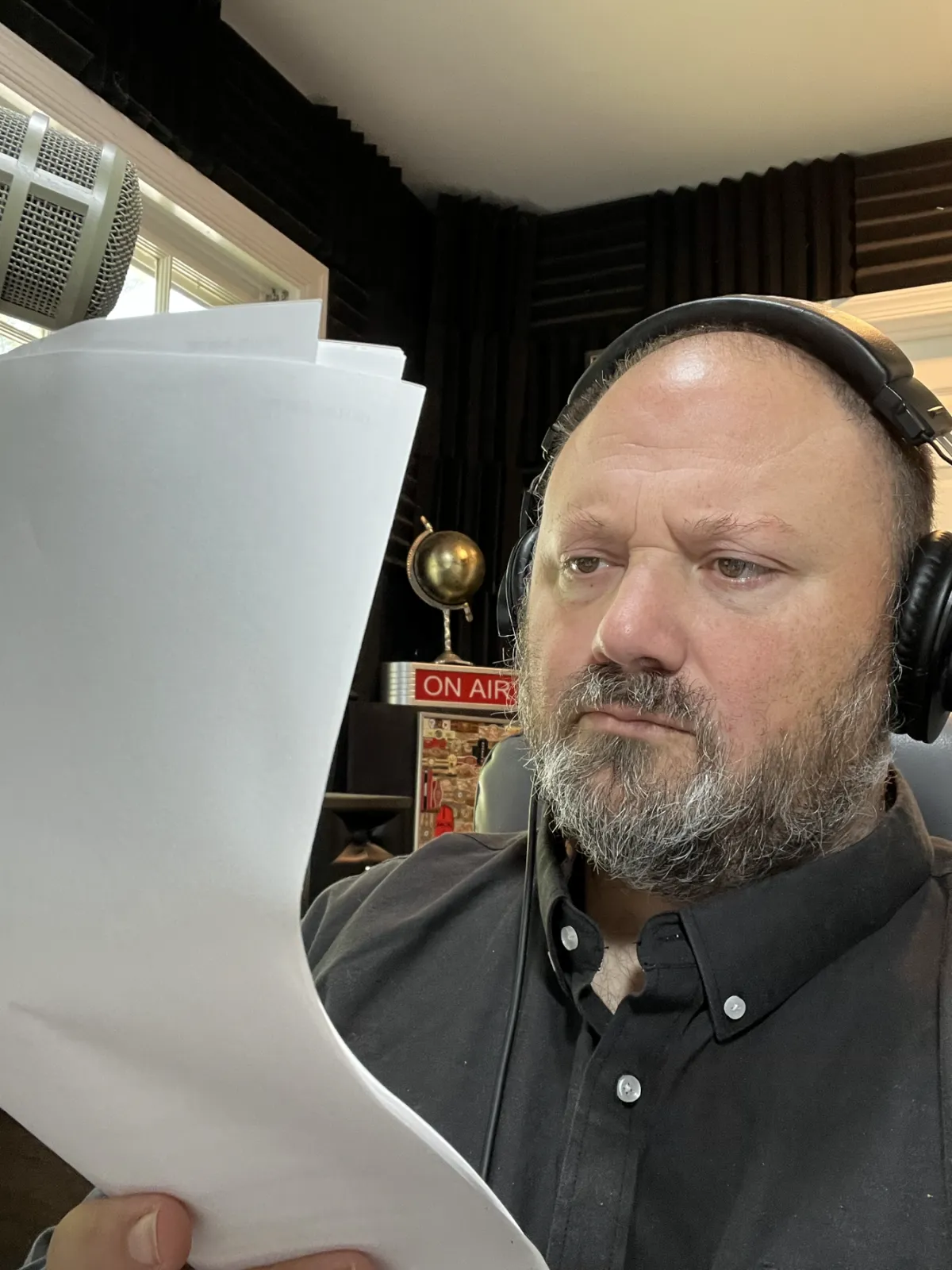
I read the whole script before I record and send any questions first, so nothing is guessed. Your team can join a live directed session over video if you’d like to hear it as it’s recorded. I record in my own professional booth in Gloucester, Virginia, then edit and master every file, named to match your script and in the format you asked for. Most jobs are delivered in under 24 hours, and longer courses can come in batches so your team can review as you go. Every job includes one free revision of up to 50 words, plus pickups.
Quick questions
What format should an e-learning voice over script be in?
A table in Word, Google Docs or a spreadsheet: one row per slide or screen, with a file name, the narration, and notes that aren’t read aloud.
Do I need a pronunciation guide?
Yes, if the script has product names, people, places or acronyms. Only list the words a stranger could get wrong.
Can you work from PowerPoint speaker notes?
Yes, but a script document is easier for everyone to check against. If the notes are all you have, send them and I’ll ask about anything unclear.
What if we change the script after recording?
Small fixes are covered by the free revision of up to 50 words and pickups. New or rewritten sections are quoted separately.
How do I get a quote?
Send the script or a word count, your deadline and what the course is for. I usually reply within a few hours.
Script ready to go?
Send it over, or just the word count and deadline, and I’ll read it and come back with a free quote, usually within a few hours.
More for course teams: How to hire an e-learning voice actor · E-learning & training voice over · More guides for buyers